
How to Logout?
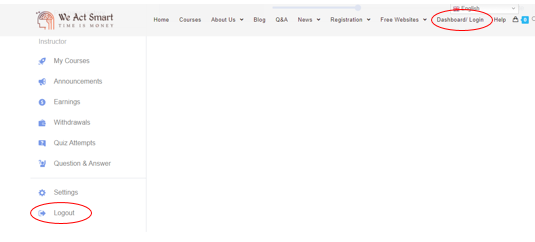
- Click on dashboard icon, and scroll down then click on logout.
How to withdraw my balance?
- Login to website
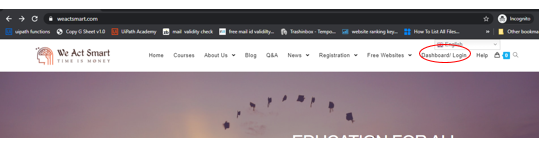
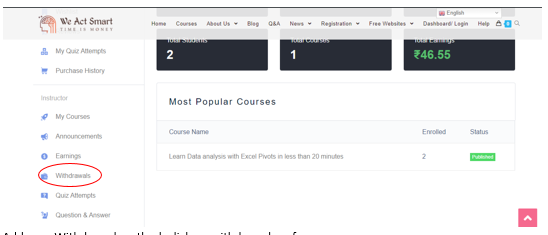
- Click on Withdrawal option
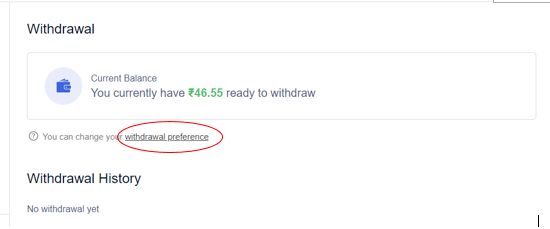
- Add your Withdrawal method, click on withdrawal preference.
- Select Source which you want to get paid:
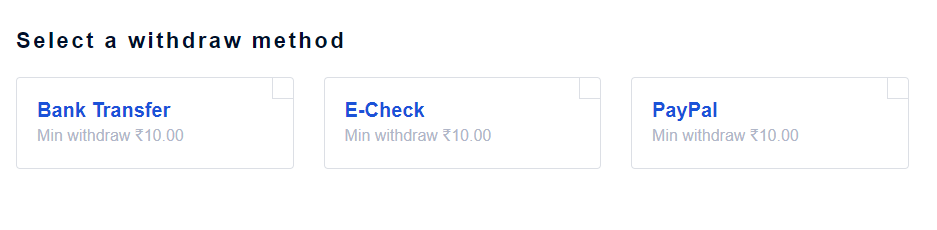
- In Bank transfer for india payments use IFSC code in IBAN and SWIFT boxes.
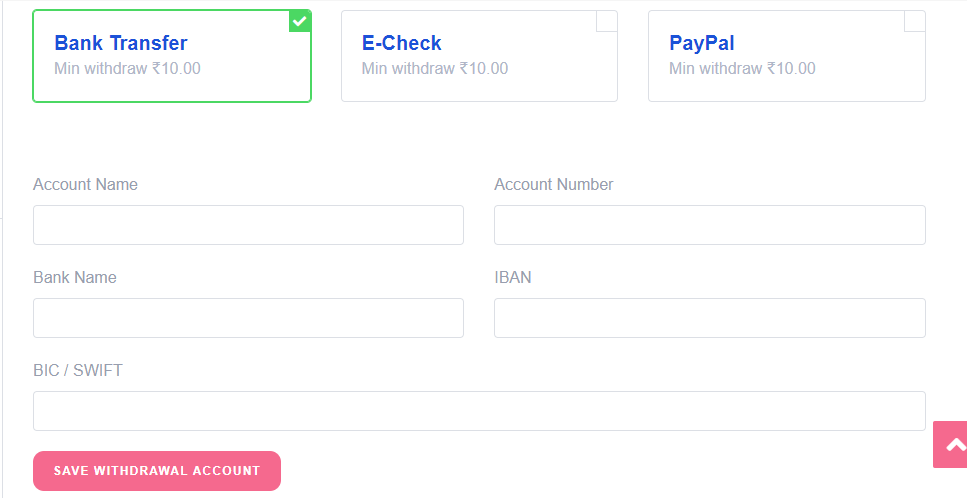
- Use E-check – To get paid on phonepay/google pay/ paytm – add your number and type. Ex: 999999999 – Paytm
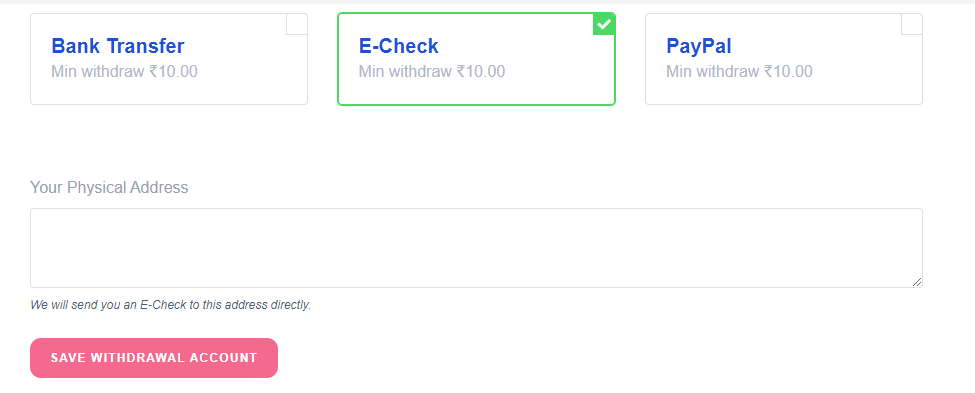
- You can also use Paypal email address by selecting paypal option.
Then click on save withdrawal account.
Go back to withdrawal section, you will get withdrawal box now. Click on it.
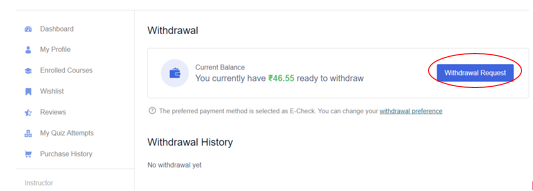
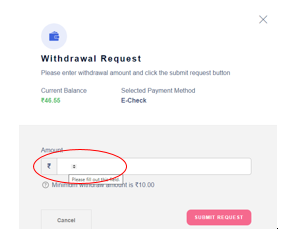
- In the final box Place your cursor at position shown in image and add amount you want to withdraw. And click on submit
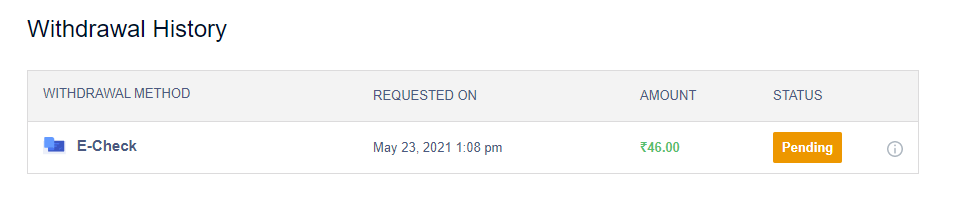
- After submission. You will receive payment in 1-2 weeks. Status can be seen in dashboard.
How to edit published courses?
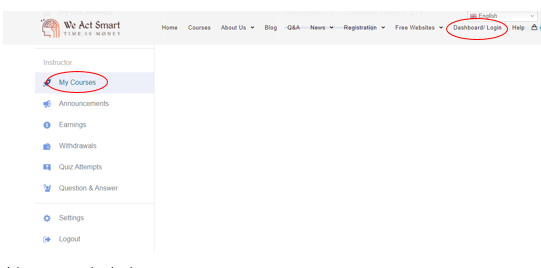
Click on dashboard icon, and scroll down to my courses then you edit course you have created.
- After making payment course gets added to your dashboard.

How to delete wrong uploaded media/video?
- Go to your dashboard, click on media and click on relevant video
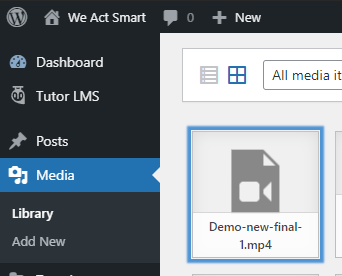
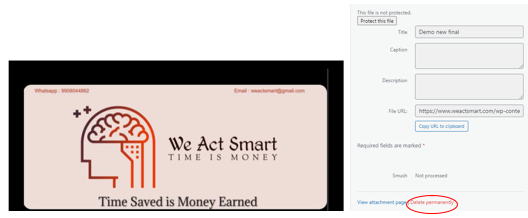
- Scroll down on right of the video and click on delete.
How to save course for future? Add courses to use in future?
- Click on any course page you wish to add for future. Click on Enroll Now on right side.

- Login into your account

- Click on enrolled courses in your dashboard. You can see course got saved

How to buy a course? With or without Login?
- Click on Add to cart

- Click on Proceed to Checkout

- If you have logged in, all details will be auto filled. In case of new customer you can create account here itself by entering Email, Username, Password and click on place order. Using Instamojo you can pay using Debit cards/ Credit cards/ Google pay/ Phone pay/ Any online banking channels.

- Along with basic price, you will be charged a fee which goes to instamojo for providing payment options.
- You can scan directly to pay.

- Click on more payment options to add more option

- After making payment course gets added to your dashboard.
Why am i getting charged extra on payment page?
- Along with basic price, you will be charged a fee which goes to instamojo for providing payment options.
- You can scan directly to pay.
- Click on more payment options to add more option
- After making payment course gets added to your dashboard.
How to share course?
- You can click on the options as shown below to share course on your social media or send link.
